
Common llms.txt Errors: How to Fix Them on WordPress
Quick answer
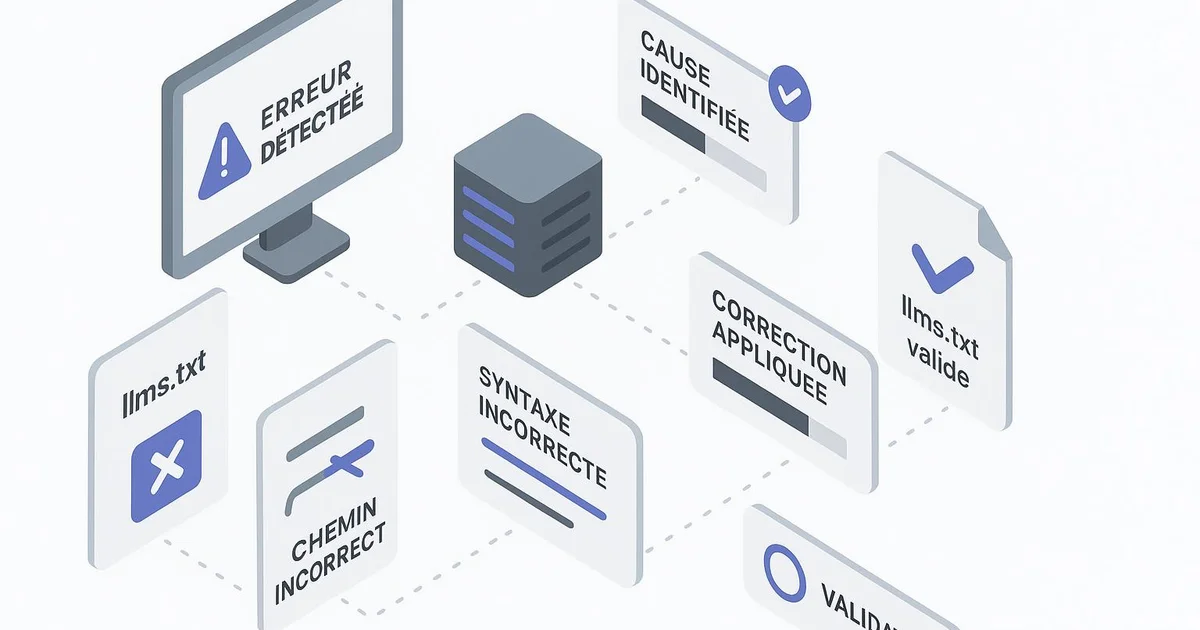
Common llms.txt errors on WordPress mostly involve an incorrect location, non-compliant Markdown syntax, broken internal links, or an inaccessible file (404, wrong MIME type). On WordPress, they often stem from a redirect plugin, a misconfigured cache, or a manual upload to the wrong directory. Fixing them starts with an accessibility check at the domain root.
The llms.txt file has emerged as a convention for guiding generative engines toward a site's most relevant content. But on WordPress, implementing it comes with specific pitfalls: a CMS that rewrites URLs, cache plugins, automatic redirects, and a domain root that isn't always what you think it is. As a result, many llms.txt files published in good faith remain inaccessible or malformed without the publisher noticing. This guide lists the most common errors observed on WordPress installations, explains their technical causes, and details concrete fixes, plugin by plugin. We'll also see how a solution like Selfhook can automatically validate the file's syntax and accessibility after each publication, so these errors don't go unnoticed over time. For the basics, first check our llms-txt-wordpress-guide and the creer-llms-txt-wordpress article.
Definition
An llms.txt is a plain-text file in Markdown format, placed at the root of a domain, that describes the structure and priority content of a site for AI engines such as ChatGPT, Perplexity, or Gemini.
Why is the llms.txt file often inaccessible on WordPress?
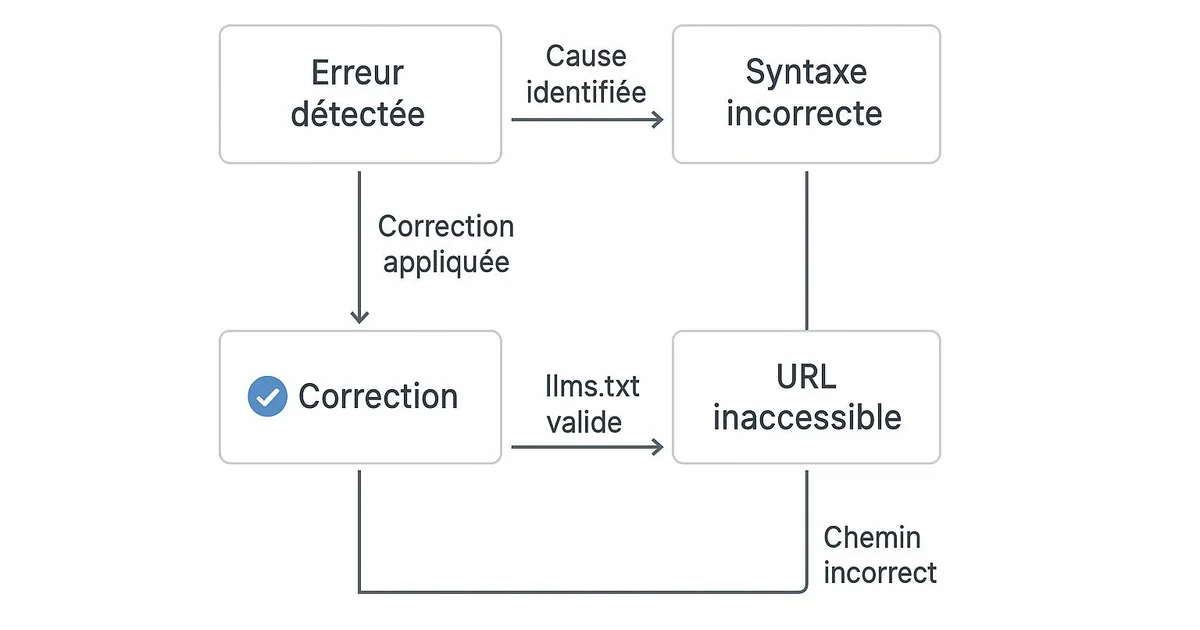
The most frequent and most silent error is an llms.txt file that is simply inaccessible at the expected URL. The convention requires a precise location: the domain root, meaning https://yoursite.com/llms.txt. On WordPress, however, the notion of root is often confusing. A file placed in the theme folder, in wp-content, or in a subdirectory will never be served at the canonical URL, even if it exists on the server. It must be placed at the root of the installation, at the same level as wp-config.php and the wp-admin folder. A second classic cause: rewrite rules. WordPress relies on an .htaccess file (Apache) or an Nginx configuration that routes most requests to index.php. If an overly broad rule intercepts /llms.txt, the CMS returns a 404 page instead of the static file. Redirect plugins like Redirection or RankMath rules can also capture the URL by mistake. Caching adds another layer of complexity: a plugin like WP Rocket or a CDN may serve an outdated or improperly generated version. Finally, some hosts apply an incorrect MIME type, serving the file as application/octet-stream rather than text/plain, which disrupts certain AI crawlers. Verification is done by opening the URL directly in a browser in private mode, then checking the HTTP header via developer tools: you should get a 200 status code and a consistent Content-Type. Google Search Console does not monitor this file, so a manual or automated check is required.
- Check the exact URL: https://domain.com/llms.txt, not a subfolder
- Confirm an HTTP 200 status code and a text/plain Content-Type
- Temporarily disable caching to test the real version
- Inspect .htaccess rules and redirect plugins
Which Markdown syntax errors corrupt the file?
Once the file is accessible, the next error concerns its internal structure. The llms.txt format relies on simple but strict Markdown syntax that AI engines parse to understand the content hierarchy. A malformed file remains readable for a human but loses its value for ChatGPT or Perplexity, which may ignore sections whose structure they don't recognize. The first rule: the file must begin with a adapté H1 title, preceded by a single hash followed by a space, for example "# Site Name". Omitting the space, using multiple H1s, or starting directly with text breaks the expected hierarchy. Next comes an optional descriptive blockquote, then H2 sections introduced by two hashes, each grouping a list of Markdown links in the format [title](url): description. On WordPress, a recurring pitfall comes from editing via the Gutenberg editor or a plugin that transforms characters: typographic quotes, em dashes, or non-breaking spaces replace the expected ASCII characters and break parsing. Pasting text from Word or a formatted document is a frequent source of this problem. You should always edit the llms.txt in plain text, ideally via a code editor or FTP access. Another error: relative links instead of absolute links. An external AI engine cannot resolve /blog/article; it needs the full URL with the protocol. Similarly, links pointing to noindex pages or unpublished WordPress drafts return 404s and degrade the file's credibility. A consistency check between the listed URLs and the actually published content is essential after each update.
- A single H1 title at the top, with a space after the hash
- Absolute Markdown links in the format [title](https://...): description
- Avoid typographic characters from a Word copy-paste
- Verify that each listed URL points to published content
How to fix a file generated by a WordPress plugin?
More and more plugins offer to automatically generate an llms.txt from the site's content. It's convenient, but it introduces its own category of errors. A plugin that simply lists all pages and posts produces a bulky, noisy file where strategic content drowns among category pages, author archives, or legal notices. The principle of llms.txt is, on the contrary, to prioritize and select the most useful resources for an AI engine. The first fix is to filter the generation. If your plugin allows it, exclude secondary content types: tag pages, attachments, pagination pages. Yoast and RankMath already expose a priority logic through their indexing settings and XML sitemaps; aligning the llms.txt with what is deemed indexable is a good starting point. Content set to noindex in Yoast has no place in the llms.txt. The second fix: freshness. A file generated only once quickly becomes outdated as you publish. If the plugin doesn't regenerate the file with each publication, you need to schedule a regeneration, for example via a WordPress hook triggered on the publish_post action, or automate the process with an external tool. An llms.txt listing deleted articles but ignoring your three latest publications sends a dated signal to engines. Third point: descriptions. A plugin that bluntly reuses the Yoast meta description sometimes produces truncated or empty descriptions. Reviewing and enriching the descriptions of key resources improves understanding by generative engines, especially for the pillar pages of your topical authority. Automation saves time, but human review remains necessary on priority sections.
- Exclude tags, archives, and attachments from generation
- Align the file with indexable content defined in Yoast or RankMath
- Regenerate the file on each publication via a WordPress hook
- Review pillar page descriptions rather than fully automating them
How to set up lasting monitoring of the file?
Fixing errors once is not enough: a valid llms.txt file today can become inaccessible tomorrow due to a plugin update, a hosting change, or a misconfigured cache purge. The real difficulty is that these regressions are silent. Unlike a broken product page, a broken llms.txt generates no visible alert, no unhappy customer, no immediate traffic drop in Search Console. A publisher can go months with a faulty file without knowing it. The first line of defense is a periodic accessibility check. A simple automated test that queries the URL and verifies the HTTP 200 code and MIME type is enough to detect most regressions. Uptime monitoring tools can watch a specific URL, but they don't validate the content: a file that returns 200 but whose syntax has been corrupted goes unnoticed. Robust monitoring therefore combines three layers: network accessibility, syntax compliance, and link consistency. After each WordPress publication, it makes sense to revalidate these three dimensions, since that is precisely when the file should be regenerated and new URLs appear. This is where automation makes full sense, because performing this check manually after each article isn't realistic for an active site. Integrating llms.txt validation into the publishing workflow, rather than making it a one-off task, turns a fragile convention into a reliable mechanism. The goal is not the theoretical perfection of the file, but the certainty that it remains accessible and usable by AI engines over the weeks. To dig deeper into the underlying logic, the llms-txt-quest-ce-que-cest article places these checks within the broader framework of GEO optimization.
- Monitor network accessibility (200 code, MIME type)
- Validate syntax compliance after each regeneration
- Check consistency between listed links and published content
- Trigger validation on each WordPress publication
With Selfhook, llms.txt file validation is built into the WordPress publishing workflow. After each article is generated and automatically published, Selfhook queries the llms.txt URL at the domain root, checks the HTTP code, MIME type, and Markdown syntax compliance, then verifies that the listed links point to actually published content. If an error is detected — inaccessible file, missing H1, broken link — an alert is raised immediately. This continuous monitoring prevents a silent regression, tied to a cache plugin or a redirect, from depriving your content of its visibility to AI engines for weeks.
Selfhook centralizes content generation, SEO/GEO optimization, WordPress publishing and tracking in a single workflow.
See all features →Sources
- llms.txt proposal (llmstxt.org) — Reference specification describing the expected Markdown format and the root location
- Yoast SEO documentation — Indexing and noindex logic, useful for aligning the scope of the llms.txt
- Google Search Central — General framework on static file accessibility and HTTP response codes
An advanced pitfall concerns WordPress multisite setups or sites served behind a reverse proxy. In these configurations, the root perceived by engines may differ from the root of the PHP installation. An llms.txt accessible in internal testing may remain invisible from the outside if the proxy doesn't route the request correctly. Always test from an external network, and verify that the file doesn't depend on a header condition (User-Agent, cookie) that would hide it from AI crawlers lacking an active WordPress session.
FAQ
Where exactly should the llms.txt file be placed on WordPress?
At the root of the installation, at the same level as wp-config.php, so it's served at the URL https://yourdomain.com/llms.txt. Placing it in wp-content or in the theme won't make it accessible at the canonical URL expected by AI engines.
Why does my llms.txt return a 404 error?
Most often, a WordPress rewrite rule or a redirect plugin intercepts the request to index.php. Check your .htaccess, temporarily disable redirect plugins, and confirm the file physically exists at the root.
Should the llms.txt be regenerated on every publication?
It's recommended for an active site, so new articles appear in the file and deleted URLs disappear from it. A WordPress hook on publish_post or an automated tool avoids tedious manual maintenance.
Does Google read the llms.txt file?
The llms.txt is a convention aimed at generative engines like ChatGPT or Perplexity, not an official Google standard. Its impact remains to be measured depending on the topic and may vary from one engine to another.
A WordPress publisher specializing in SaaS had generated its llms.txt via a plugin, then migrated hosts three months later. The migration had reset the .htaccess, and a broad rule now intercepted /llms.txt toward a 404 page. No one noticed: Search Console traffic remained stable. An audit revealed the file had been inaccessible for nine weeks. After fixing the rewrite rule and adding an automated accessibility check triggered on each publication, the file returned a 200 code. The publisher also discovered that 14 of the 60 listed links pointed to articles set to noindex, which were removed from the file to strengthen its relevance.
A broken llms.txt triggers no alarm: no unhappy customer, no traffic drop. It's precisely this silence that makes it dangerous, and that calls for automated validation on every publication.
Related cluster articles
Automate with Selfhook
Conclusion
llms.txt file errors on WordPress rarely stem from the format itself, but from the environment: misidentified root, rewrite rules, caching, redirect plugins, and unfiltered automatic generation. Fixing them once isn't enough, because these regressions are silent and can persist for weeks. Best practice is to systematically check accessibility, syntax, and link consistency, ideally on each publication. By integrating this validation into your workflow with Selfhook, you turn a fragile convention into a reliable mechanism, usable over the long term by AI engines. To go further, continue with our guides dedicated to creating and understanding the llms.txt on WordPress.
Ready to automate your SEO content?
Book a 30-minute video demo: we show you Selfhook on your WordPress site, from SEO audit to publishing.
Request a demo