
How to Create an llms.txt File on WordPress: Complete Guide
Quick answer
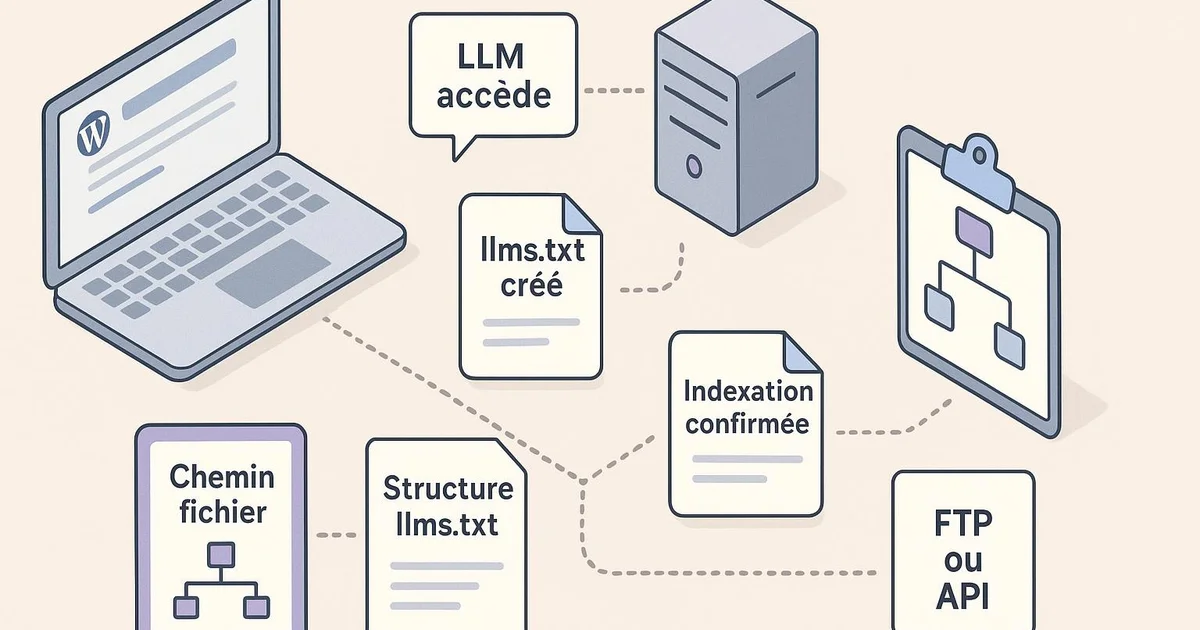
Creating an llms.txt file on WordPress means generating a text file at the site root (domain.com/llms.txt) that lists your key content in Markdown format. You can add it via FTP, a file manager plugin, or automate it with a tool like Selfhook that updates it with every publication.
The llms.txt file is gradually establishing itself as a convention to help AI engines navigate a site and identify its most relevant content. On WordPress, its creation raises concrete questions: where to place it, how to structure it, and above all how to keep it up to date when the site publishes regularly. Unlike robots.txt, its purpose is not to block but to guide how language models understand the site. In this guide, we detail the methods for creating an llms.txt on WordPress: from manual addition via FTP to full automation. We will see how to structure it according to the specification, which mistakes to avoid, and how tools like Selfhook can generate and refresh this file without an extra plugin or manual intervention on every new publication.
Definition
The llms.txt file is a structured text file, placed at the root of a WordPress site, that describes and prioritizes the content intended to be understood by large language models such as ChatGPT, Gemini, or Perplexity.
What is an llms.txt file and why add it to WordPress?
The llms.txt file follows a logic close to that of the sitemap.xml, but oriented toward language models rather than classic indexing crawlers. Where Google explores an entire site via its sitemap, an AI engine like ChatGPT, Perplexity, or Gemini has a limited processing budget and can benefit from a prioritized entry point. The llms.txt provides that entry point: written in Markdown, it presents a site title, a short description, then sections listing essential URLs with a label and sometimes a summary. On WordPress, the benefit is twofold. First, a WordPress site often generates dozens of secondary pages (archives, taxonomies, pagination) that dilute readability for a model. The llms.txt helps isolate high-value content: in-depth articles, pillar pages, documentation. Second, WordPress evolves constantly — every publication modifies the site's information structure, which quickly makes a static file obsolete. One must remain measured about the effects. The presence of an llms.txt ensures neither citation nor increased visibility in generative answers. Its adoption by the main engines remains partial and its real impact must be observed case by case. It is more a signal of good structuring, to be combined with Schema.org structured data managed via Yoast or RankMath. To dig deeper into the concept, see our dedicated article "llms.txt: what is it".
- Site title and description in the Markdown header
- Thematic sections grouping key URLs
- Descriptive labels for each referenced link
- Mandatory placement at the root: domain.com/llms.txt
How to create an llms.txt file manually on WordPress?
The manual method suits small sites or those that publish rarely. It requires writing the file, then uploading it to the root of the WordPress server, that is, in the same directory as the wp-config.php file and the physical robots.txt. The first step is to create the content in a text editor. The specification recommends a simple Markdown format: a level 1 heading (H1) for the site name, a quote block or a description paragraph, then level 2 headings (H2) for each content category, followed by lists of links. Each link should point to an absolute URL accompanied by a brief explanation. To deploy it on WordPress, several options exist depending on your hosting: The major constraint remains maintenance. As soon as an article is published, edited, or unpublished, the file must be revised by hand, at the risk of referencing outdated URLs or omitting your recent content. This is why the manual method quickly reaches its limits on an active editorial site. WordPress offers no native mechanism to regenerate this file, unlike the XML sitemap that Yoast or RankMath refresh automatically. Our guide "llms.txt WordPress" details each step with screenshots of the interface.
- Via an FTP client (FileZilla): direct upload of the file to the root
- Via the host's file manager (cPanel, Plesk)
- Via a plugin like WP File Manager to edit without FTP
- Final check by visiting domain.com/llms.txt in the browser
How to automate llms.txt generation on WordPress?
Automation solves the central problem of maintenance. On a site that publishes several times a week, a frozen llms.txt file loses its relevance within days. Three technical approaches exist to automate its generation on WordPress. The first consists of developing a PHP snippet in the theme's functions.php file, which queries the WordPress REST API to retrieve publications and regenerates the file at regular intervals via WP-Cron. This path offers full control but requires development skills and code maintenance with every WordPress update. The second relies on specialized plugins, still few in number and of uneven maturity. Some generate an llms.txt from selected content types, but few finely handle prioritization or per-article summaries. It is worth checking compatibility with your WordPress version and the impact on performance. The third approach fully externalizes generation to a service connected to your WordPress via the API. This is the principle chosen by Selfhook: with each publication or update, the file is regenerated and served at the root without a resident plugin or a cron task to monitor. Whatever the method, ensure the file stays lightweight and prioritized. An llms.txt that reproduces the entire sitemap loses its purpose: the goal is to guide, not to list everything. Then measure any effects in Search Console and server logs to observe AI crawler behavior. Our article "llms.txt and AI SEO" digs deeper into these measurement aspects.
- PHP snippet + WP-Cron: full control, requires development
- Dedicated plugin: fast but variable maturity and performance
- External service via API: automatic regeneration without code
With Selfhook, creating the llms.txt file on WordPress becomes entirely automatic. As soon as you publish or edit an article via Selfhook's AI content generation, the llms.txt file is regenerated and served at the root of your domain, with no extra plugin or manual intervention. Selfhook selects high-value content, prioritizes it by thematic cluster, and assigns descriptive labels designed for AI engines. Combined with automated WordPress publishing and the integrated SEO audit, this feature ensures your file permanently reflects the real structure of your site, with no outdated URL or forgotten recent content.
Selfhook centralizes content generation, SEO/GEO optimization, WordPress publishing and tracking in a single workflow.
See all features →An often-overlooked point: the llms.txt must be served with the correct HTTP header (Content-Type: text/plain or text/markdown) and remain accessible without redirection or authentication. On WordPress, some cache or security plugins intercept files at the root and return a 404 or an HTML page. Check the raw response with curl -I domain.com/llms.txt. A dynamically generated file should also avoid relying on JavaScript rendering, which most AI crawlers do not process reliably.
Sources
- llms.txt specification (llmstxt.org) — Defines the expected Markdown format and the recommended file structure.
- WordPress REST API documentation — Reference for retrieving publications and automating file generation.
- Google Search Central — Resource for distinguishing llms.txt, robots.txt, and sitemap in the crawl context.
FAQ
Is the llms.txt file mandatory on WordPress?
No, it is not mandatory and its absence does not penalize your classic SEO. It is an emerging convention meant to guide AI engines. Its adoption remains partial and its impact must be observed case by case.
Where should the llms.txt file be placed on a WordPress site?
The file must be at the root of the domain, accessible at domain.com/llms.txt. This is the same location as the physical robots.txt, generally the directory containing wp-config.php.
Can a WordPress plugin generate llms.txt automatically?
A few specialized plugins are starting to offer it, but their maturity is uneven. An external solution connected via the API, like Selfhook, regenerates the file with each publication without a resident plugin or a cron task to monitor.
What is the difference between llms.txt and sitemap.xml?
The sitemap.xml exhaustively lists URLs for indexing crawlers like Googlebot. The llms.txt prioritizes in Markdown a subset of high-value content to help language models understand the site.
Related cluster articles
Reference guides
Automate with Selfhook
Conclusion
Creating an llms.txt file on WordPress is technically simple, but its real challenge lies in maintenance on a site that publishes regularly. The manual method via FTP suits small sites; automation becomes essential as the editorial pace accelerates. Keep in mind that this file remains one signal among others, to be measured in Search Console and your logs rather than treated as a recommended lever. To avoid outdated URLs and focus your energy on content, Selfhook generates and updates your llms.txt automatically with every publication, in line with your WordPress strategy.
Ready to automate your SEO content?
Book a 30-minute video demo: we show you Selfhook on your WordPress site, from SEO audit to publishing.
Request a demo