
Tracking New Page Indexing in Google Search Console
Quick answer
Tracking new page indexing in Search Console means checking, via the URL Inspection tool and the Pages report, whether Google has crawled and indexed your recently published content. Enter the URL, review its status, and monitor changes over 24 to 72 hours. In some cases, a manual indexing request can speed up the process.
You just published a new page, but it's nowhere to be found on Google. Is it even indexed? Without tracking, you're flying blind: you can't tell whether Google discovered your content, deemed it worthy of indexing, or hit a technical issue. Google Search Console (GSC) is the free official tool that answers these questions. It shows the exact status of each URL: crawled, indexed, excluded, or in error. In this tutorial, we'll see how to use URL Inspection, the Pages report, and your sitemap to track the indexing of new pages, step by step. We'll also cover delays commonly observed and signals to watch. Finally, you'll learn how Selfhook automates this tracking after each WordPress publication, checking indexing via the GSC API at 24h, 48h, and 72h, so you avoid manually inspecting every URL.
Definition
Indexing tracking in Search Console is the process of verifying whether Google has crawled, processed, and added a page to its index, so it can appear in search results.
How to check a page's indexing with URL Inspection?
The URL Inspection tool is the starting point for any individual indexing check in Search Console. URL Inspection is the feature that displays the precise status of a given page in Google's index. To use it, paste the full URL into the search bar at the top of the GSC interface, then wait a few seconds. Google returns a clear verdict: "URL is on Google" means the page is indexed, while "URL is not on Google" means it isn't yet, or has been excluded. Beyond the verdict, the tool provides valuable details. You see the date of Googlebot's last crawl, the discovery method (via sitemap or internal link), the canonical URL Google selected, and the page's rendering state. If a recent page isn't showing up yet, you can click "Request indexing" to flag its existence to Google. This action ensures nothing, but it can help speed up discovery in some cases. For new pages, focus on two things: has the page been crawled? And does the canonical URL match the one you're targeting? An unexpected canonical often reveals a duplicate content issue to fix before you can expect indexing.
- Paste the full URL into the inspection bar
- Read the verdict: indexed, not indexed, or excluded
- Check the date of the last crawl
- Review the canonical URL Google selected
- Click "Request indexing" if needed
Tracking indexing at scale with the Pages report
URL Inspection is perfect for one page at a time, but quickly becomes tedious if you publish several pieces per week. The Pages report (formerly "Coverage") offers an overview of every URL Google knows about. It splits into two main categories: "Indexed" pages and "Not indexed" pages, each with a breakdown of reasons. This report is especially useful for spotting trends. If you publish ten articles and only three are indexed a week later, the Pages report tells you why the other seven aren't: "Discovered, currently not indexed", "Crawled, currently not indexed", "Page with redirect", or "Excluded by noindex tag". Each reason points to a different cause to diagnose. The "Discovered, currently not indexed" status is common for new pages: Google knows the URL but hasn't crawled it yet, often due to limited priority or crawl budget. "Crawled, currently not indexed" is more concerning: Google visited the page but chose not to index it, sometimes due to content quality deemed insufficient depending on the topic. Always cross-check this report with your sitemap to verify consistency between what you submit and what Google keeps. Pages report data is generally refreshed with a few days' delay, which you should factor into your tracking.
- "Discovered, currently not indexed": URL known but not yet crawled
- "Crawled, currently not indexed": visited but not kept
- "Excluded by noindex tag": check your configuration
- "Page with redirect": final URL differs from the submitted one
What indexing delays should you expect for a new page?
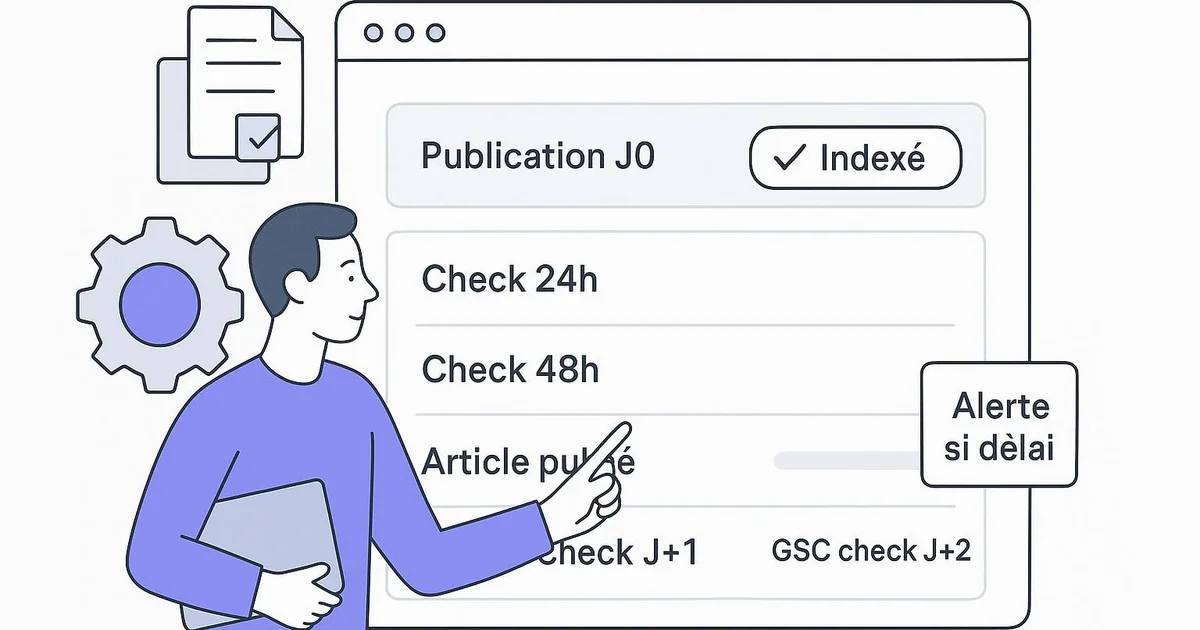
The question of timing comes up constantly: how long does Google take to index a new page? The honest answer is "it depends". Delays commonly observed range from a few hours to several weeks, depending on the site's authority, publishing frequency, internal linking quality, and the crawl budget Google allocates. A well-known news site, crawled several times a day, often sees its pages indexed within hours. Conversely, a new blog with little history may wait one to two weeks, or more. To speed things up, several levers exist: submit an up-to-date XML sitemap, strengthen internal linking to the new page, and ensure the content delivers real value. A well-configured automatic sitemap greatly eases discovery, as detailed in our article on the automatic XML sitemap. Ideal tracking consists of checking the URL at regular intervals after publication: 24h, 48h, then 72h. If nothing moves after 72 hours, a manual indexing request via URL Inspection can help. Beyond a week without indexing, inspect technical causes: an accidental noindex tag, a robots.txt block, a server error, or a misconfigured canonical. This checking rhythm is exactly what an indexing monitoring automation tool can replicate seamlessly, alerting you only when an anomaly occurs.
With Selfhook, indexing tracking starts automatically the moment you publish in WordPress. After each published article, Selfhook triggers a check via the Google Search Console API at 24h, 48h, and 72h to confirm the page has been crawled and indexed. You no longer need to inspect each URL manually: if a page stays "Discovered, currently not indexed" after 72 hours, Selfhook flags it. Combined with AI content generation and automated WordPress publishing, this monitoring closes the loop between creation and indexing, letting you focus your time on analysis rather than repetitive checks in Search Console.
Selfhook centralizes content generation, SEO/GEO optimization, WordPress publishing and tracking in a single workflow.
See all features →FAQ
How long does it take for a new page to be indexed?
Delays commonly observed range from a few hours to two weeks, depending on the site's authority and crawl budget. A site that publishes regularly with good internal linking is often indexed faster. Check the status in Search Console at 24h, 48h, and 72h after publishing.
What does "Crawled, currently not indexed" mean?
This status means Google visited your page but chose not to add it to its index, in some cases due to content quality deemed insufficient. Improve the content, strengthen internal linking, then request indexing again.
Does a manual indexing request ensure indexing?
No. An indexing request flags the URL's existence to Google and can help speed up discovery, but it never ensures indexing. Google remains the sole decision-maker, based on its quality and relevance criteria.
Should I submit each URL individually?
Not necessarily. An up-to-date XML sitemap lets Google automatically discover your new pages. Manual submission via URL Inspection remains useful for priority content or pages slow to be indexed.
A specialized WordPress publisher releases 15 articles per month. Before automation, they inspected each URL by hand, often forgetting to recheck after a few days. The result: about 3 articles stayed unindexed without their noticing, losing estimated traffic. By enabling automatic tracking at 24h, 48h, and 72h via the Search Console API, they discovered two pages carried a noindex tag inherited from a template. After fixing it and requesting indexing again, these pages were indexed within 48 hours. Over three months, the observed indexing rate rose from roughly 80% to nearly 97%, freeing up several hours of manual checks each month.
Indexing tracking methods in Search Console
| Criterion | Manual URL Inspection | Automated tracking (API) |
|---|---|---|
| Page volume | One at a time | Unlimited |
| Effort required | High, repetitive | Low, automatic |
| Anomaly detection | Depends on vigilance | Systematic alerts |
| Check rhythm | Irregular | 24h, 48h, 72h consistent |
| Fits frequent publishing | No | Yes |
Key takeaways
Use URL Inspection to check the precise status of a given page
Consult the Pages report for large-scale tracking and non-indexing reasons
Check your new pages at 24h, 48h, and 72h after publishing
An up-to-date XML sitemap eases automatic discovery by Google
Beyond a week without indexing, inspect technical causes (noindex, robots.txt, canonical)
Automate tracking to never miss an indexing anomaly
Related cluster articles
Automate with Selfhook
Conclusion
Tracking the indexing of your new pages in Search Console is essential to turn a publication into real traffic. URL Inspection gives page-by-page detail, the Pages report offers the big picture, and a checking rhythm at 24h, 48h, and 72h helps detect blockers quickly. In some cases, a manual request speeds up discovery, but nothing replaces quality content and good internal linking. To avoid repetitive checks, Selfhook automates this tracking after each WordPress publication and alerts you when an anomaly occurs, so you can devote your energy to what matters: creating and analyzing.
Ready to automate your SEO content?
Book a 30-minute video demo: we show you Selfhook on your WordPress site, from SEO audit to publishing.
Request a demo