
Optimizing CTR in Search Console: an advanced method
Quick answer
Optimizing CTR in Search Console means identifying pages with high impressions but low click rates, then rewriting titles and meta descriptions to make them more compelling. Filter by query, compare your CTR to the position benchmark, test variants and measure the impact over 4 to 6 weeks.
Do you have pages generating thousands of impressions but few clicks? That's the most common signal of a CTR problem. Google Search Console is full of actionable data, yet most users stop at surface numbers without digging deeper. However, optimizing CTR can contribute to gaining traffic without producing new content: it's simply about presenting existing content better. In this tutorial, you'll learn an advanced method: filtering high-potential pages, comparing CTR to average position, rewriting titles and descriptions, then measuring the impact in Search Console. We'll also see how tools like Selfhook automatically identify these opportunities and generate title variants to test. The goal: turn dormant impressions into real clicks, section by section, without unnecessary theory.
Definition
CTR (Click-Through Rate) in Google Search Console is the ratio between the number of clicks and the number of impressions for a page or query, expressed as a percentage. It measures how attractive a result is in the SERPs.
How to identify pages with high CTR potential?
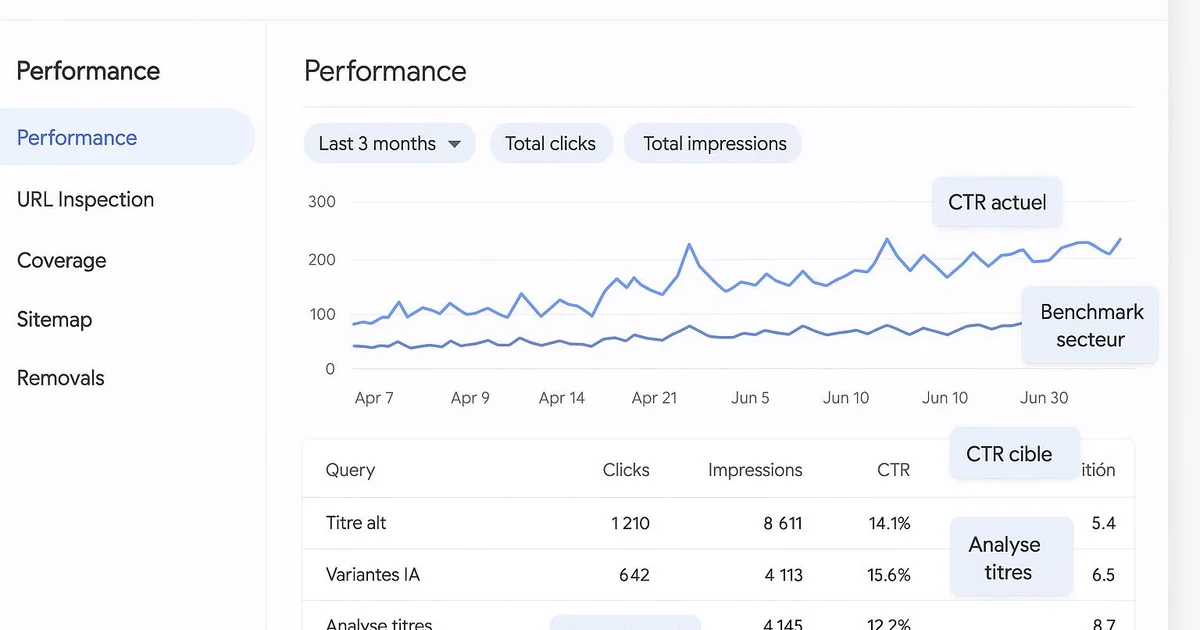
The first step is spotting pages that receive many impressions but convert poorly into clicks. Open the Performance report in Google Search Console, enable the Clicks, Impressions, CTR and Average position metrics. Sort by descending impressions, then look at pages whose CTR is abnormally low relative to their position. A page ranking in position 4 with a 1% CTR is generally underperforming: at that position, a CTR of around 6 to 9% is often observed depending on the topic. The gap reveals untapped potential. Also consider filtering by device type and country, since behaviors vary. A good habit: export the data to a spreadsheet to calculate an expected CTR per position and compare it to the actual CTR. The biggest gaps are your priorities. This approach connects to our article on impressions without clicks in Search Console, where we detail the logic of dormant potential.
- Filter on the last 3 months for stable data
- Spot pages in positions 3 to 10 with low CTR
- Compare actual CTR to the expected average CTR for the position
- Prioritize by impression volume × CTR gap
- Segment by query to understand real intent
Rewriting titles and meta descriptions to maximize clicks
Once priority pages are identified, focus on the two direct levers: the title tag and the meta description. The title is the most decisive element for CTR. Place the main keyword at the start, add a concrete benefit, a number or a year when relevant, and stay under 60 characters to avoid truncation in Google. The meta description, although not directly used for ranking, influences the click decision: it should fit within 145 to 160 characters, include an action verb and answer the search intent. Test different angles: question, result promise, mention of a format (guide, checklist, comparison). Extensions like Yoast or RankMath show a useful SERP preview to calibrate length. Avoid clickbait: a title too far from the content can inflate CTR then degrade time on page, a negative signal to watch. To go further, check our guide on automatically generating meta titles on WordPress, which shows how to produce variants at scale without spending hours.
- Main keyword at the start of the title
- Concrete benefit or number in the title
- Meta description of 145-160 characters with an action verb
- SERP preview via Yoast or RankMath before publishing
- Strict consistency between title promise and actual content
How to measure the impact of your CTR optimizations?
Optimizing without measuring is pointless. After modifying a title or description, you need to isolate the effect of the change. The advanced method is to note the modification date, then compare CTR over an equivalent window before and after in Google Search Console. Use the period comparison in the Performance report: select a specific page, display the CTR metric, and compare for example the previous 28 days to the following 28 days. Watch out for biases: a change in average position can distort the reading. If your page moved from position 6 to position 3, the CTR increase mainly comes from the ranking, not the title. So isolate cases where position stays stable but CTR evolves. Generally expect 4 to 6 weeks to get a reliable signal, since Google takes time to recrawl and impression volumes fluctuate. Document each test in a table: page, old title, new title, CTR before/after, position before/after. This rigorous tracking turns CTR optimization into a repeatable process rather than luck. It's also the foundation for automating Google Search Console, a topic we cover in a dedicated article.
- Systematically note the date of each modification
- Compare equivalent time windows
- Neutralize the effect of average position
- Wait 4 to 6 weeks before concluding
- Centralize results in a tracking table
With Selfhook, this method becomes nearly automatic. The tool connects to your Search Console data, detects pages with high CTR potential — high impressions, low clicks for the position — and ranks them by priority. For each page, Selfhook generates several optimized title and meta description variants, ready to test, respecting length constraints. You can then publish directly to WordPress without copy-pasting. Combined with the built-in SEO audit, this lets you handle dozens of pages in one session, where manual work would take days. Selfhook doesn't replace your editorial judgment, but strongly accelerates identifying and testing opportunities.
Selfhook centralizes content generation, SEO/GEO optimization, WordPress publishing and tracking in a single workflow.
See all features →Operational checklist
Common mistakes
Confusing CTR increase with position increase
A better CTR may come from a ranking gain rather than the new title; without isolating position, the measurement is distorted.
Falling into clickbait
An overselling title inflates CTR but degrades time on page and can harm the user satisfaction signal.
Testing too many variables at once
Changing title and description simultaneously makes it impossible to know which element produced the observed effect.
Concluding too fast
Judging a test after a few days ignores Google's recrawl delay and the natural variability of impressions.
Action plan
- 1
Extract the data
Export the Performance report from Google Search Console over 3 months with clicks, impressions, CTR and position.
- 2
Prioritize opportunities
Calculate the gap between actual CTR and expected CTR per position, then rank by impression volume.
- 3
Rewrite the tags
Produce new titles and meta descriptions for priority pages, respecting optimal lengths.
- 4
Publish and date
Update the pages on WordPress and precisely note the date of each modification.
- 5
Measure the impact
Compare CTR before/after over equivalent windows after 4 to 6 weeks, neutralizing position.
- 6
Iterate
Keep the winning variants, test new angles on pages that stayed weak and repeat the cycle.

Related cluster articles
Automate with Selfhook
Conclusion
Optimizing CTR in Google Search Console is one of the most profitable SEO levers, because it leverages already-ranked content without extra production. The key is rigor: identify real potential, rewrite methodically, then measure cleanly by isolating position. Done manually, this work is time-consuming at scale. That's where a tool like Selfhook makes the difference, detecting opportunities and generating title variants ready to test, directly publishable to WordPress. Start with your ten highest-potential pages, measure over six weeks, and turn your dormant impressions into measurable clicks in Search Console.
Ready to automate your SEO content?
Book a 30-minute video demo: we show you Selfhook on your WordPress site, from SEO audit to publishing.
Request a demo