
Core Web Vitals in Search Console: Complete SEO Guide

Quick answer
Core Web Vitals in Search Console are the user experience metrics (LCP, INP, CLS) Google measures on your real pages. The dedicated report classifies your URLs as Good, Needs Improvement, or Poor. Monitor it regularly: in some cases, degradation can affect rankings, to be confirmed in Search Console.
A slow or unstable page frustrates your visitors and can, in some cases, hurt your visibility. Google Search Console provides a Core Web Vitals report that precisely identifies problem URLs based on real user data. The catch: this report must be checked manually, and a page can slip into the red zone without you noticing for weeks. You then lose correction time and potentially traffic. This guide gets straight to the point: understanding each metric, reading the report, diagnosing causes, fixing issues, and monitoring continuously. You'll find a checklist, a sequential action plan, and the mistakes to avoid. Selfhook complements this approach by monitoring your Core Web Vitals through the Search Console API and triggering an alert as soon as a page turns red, enabling immediate correction rather than after the fact.
Definition
Core Web Vitals are a set of three Google metrics (LCP, INP, CLS) that measure a web page's loading speed, responsiveness, and visual stability, and that Google Search Console reports based on real-world field data.
What do Core Web Vitals measure in Search Console?
Google Search Console displays three main metrics in its Core Web Vitals report, each targeting an aspect of user experience. This data comes from CrUX (Chrome User Experience Report), meaning real visits over a rolling 28-day window, not lab tests. That matters: a page can be fast on your fiber connection and poor for your actual visitors on 4G. Here are the three metrics you need to know:
- LCP (Largest Contentful Paint): time to display the largest visible element. Commonly observed target: under 2.5 seconds to be rated Good.
- INP (Interaction to Next Paint): page responsiveness to user interactions. This metric replaced FID in March 2024. Frequent target: under 200 ms.
- CLS (Cumulative Layout Shift): visual stability, measuring unexpected element shifts. Generally accepted target: under 0.1.
How do you read the Search Console Core Web Vitals report?
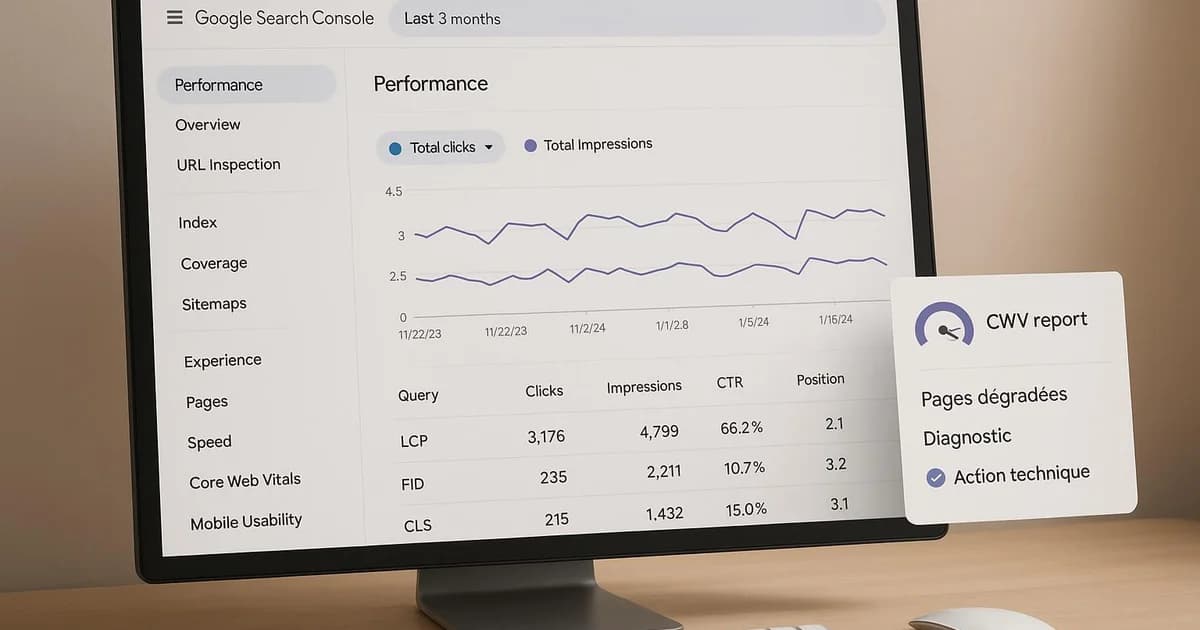
The report sits in the Experience section of Google Search Console, under Core Web Vitals. It splits into two tabs: Mobile and Desktop. Always start with Mobile, since Google uses mobile-first indexing and that's often where problems concentrate. Each tab classifies your URLs into three categories: Poor (red), Needs Improvement (orange), and Good (green). Search Console groups pages by similarity: instead of listing every URL, it creates groups of pages sharing the same problem and template. For example, all your article pages generated by the same WordPress template will appear in a single group if they suffer from the same LCP issue. Click on a Poor group to see the details: the metric at fault, the number of affected URLs, and example addresses. Use these examples as a starting point for your diagnosis. Once your fixes are deployed, the Validate Fix button triggers a recheck over about 28 days, giving Google time to collect new field data. Key point: updates to this report are not instant. Since the data relies on a rolling 28-day window, a fix will take several days to several weeks to reflect. Don't panic if red persists right after a deployment. Always complement this report with a one-off test via PageSpeed Insights, which combines field and lab data for a more precise diagnosis on a given URL.
How do you fix Core Web Vitals issues?
Once you've identified the failing metric, the fix depends on the cause. Here are the most common levers, grouped by metric, immediately applicable on a WordPress or any other site. For LCP, the heaviest element is often a hero image or a web font. Optimize those first. For INP, the culprit is usually heavy JavaScript blocking the main thread. For CLS, shifts often come from images without defined dimensions or banners injected after load.
- LCP: compress and serve images in WebP or AVIF format, preload the hero image with rel=preload, enable a CDN and caching.
- INP: reduce and defer non-critical JavaScript, remove unnecessary third-party scripts, break up long tasks.
- CLS: add width and height attributes to all images, reserve space for ads and embeds, avoid inserting content above existing content.
- On WordPress: a caching plugin (WP Rocket, LiteSpeed Cache) and an image optimization plugin can cover much of this.
- Check your theme and extensions: a heavy theme or page builder can significantly impact INP.
Why automate Core Web Vitals monitoring?
The Search Console report is valuable but passive: you have to remember to open it. In practice, a page that turns red can stay that way for weeks before you notice, especially if you manage multiple sites or a catalog of hundreds of URLs. Every day in red means a risk of degraded experience for your visitors and, depending on the topic, a potential ranking impact to measure in Search Console. Automation solves this by flipping the logic: instead of fetching the information, you receive it. Through the Google Search Console API, you can query Core Web Vitals data at regular intervals and trigger an alert as soon as a threshold is crossed or a group of pages degrades. The concrete benefits of automated monitoring:
- Fast detection: you're notified the moment a page turns red, not weeks later.
- Prioritization: the alert tells you which page group and metric to fix first.
- Time savings: no more manually checking each Search Console property.
- Historical tracking: you observe trends and the effect of your fixes over time.
- Scalability: monitoring holds up whether you manage 5 or 500 pages.
With Selfhook, you connect your Google Search Console property in a few clicks. Selfhook automatically queries the Search Console API to track your Core Web Vitals (LCP, INP, CLS) and triggers an alert as soon as a page or URL group turns red. You receive the notification with the metric at fault, enabling immediate correction rather than after the fact. Combined with Selfhook's automated SEO audit, you get a complete view of your WordPress site's technical health. This continuous monitoring integrates naturally with the Google Search Console automation described in our other guides.
Selfhook centralizes content generation, SEO/GEO optimization, WordPress publishing and tracking in a single workflow.
See all features →Operational checklist
Action plan
- 1
Audit the current state
Check the Core Web Vitals report in Search Console and list all red and orange page groups, noting the affected metric.
- 2
Prioritize by impact
Rank groups by number of URLs and traffic. Fix the templates affecting the most high-traffic pages first.
- 3
Fix the dominant metric
Apply the right levers: image optimization for LCP, JS reduction for INP, fixed dimensions for CLS.
- 4
Validate in Search Console
Deploy the fixes, then run Validate Fix and wait through the 28-day window.
- 5
Automate monitoring
Set up alerts via the Search Console API to be notified as soon as a new page degrades.
Common mistakes
Relying only on lab scores
PageSpeed lab scores don't always reflect your visitors' real experience, which is the only data Google uses for ranking.
Ignoring the Mobile tab
Google indexes mobile-first, and mobile is often where Core Web Vitals degrade the most.
Expecting immediate results after a fix
The report relies on 28 days of rolling data, so a change takes several days to several weeks to appear.
Fixing page by page instead of the template
Issues often stem from a shared template; fixing the template resolves hundreds of URLs at once.
Not monitoring after a fix
A theme or plugin update can push pages back into the red with no alert in place.
FAQ
Do Core Web Vitals really influence SEO?
Yes, Core Web Vitals are part of Google's page experience signals. Their impact varies by topic and competition and generally remains secondary to content relevance. Measure the real effect in Search Console.
How often does the Search Console report update?
The data relies on a rolling 28-day window from CrUX. A fix can therefore take from a few days to several weeks to reflect in the report.
What does INP mean and why did it replace FID?
INP (Interaction to Next Paint) measures page responsiveness across all interactions, not just the first. Google adopted it as an official Core Web Vital in March 2024 in place of FID for a more faithful reflection of experience.
Can I track Core Web Vitals without opening Search Console every day?
Yes. Through the Search Console API, a tool like Selfhook automatically queries your data and alerts you the moment a page turns red, avoiding daily manual monitoring.
A WordPress publisher managing a 400-article blog notices a gradual traffic drop. Opening Search Console, they discover a group of 180 article pages has turned red on LCP (around 4.1s), due to an unoptimized hero image in their template. They convert images to WebP, add a rel=preload on the main image, and enable a CDN. They click Validate Fix. After about three weeks, the group returns to green with an estimated LCP around 2.1s. To avoid a relapse after future theme updates, they set up an automatic Core Web Vitals alert, which now lets them be notified within hours instead of weeks.
Key takeaways
Core Web Vitals (LCP, INP, CLS) measure your visitors' real experience through CrUX field data.
Start your diagnosis with the Mobile tab and the red page groups.
Fix at the template level rather than page by page for massive impact.
Expect several weeks before a fix reflects in Search Console.
Automate monitoring to detect degradations in hours, not weeks.
Selfhook alerts you via the Search Console API as soon as a page turns red.
Related cluster articles
Reference guides
Automate with Selfhook
Conclusion
Mastering Core Web Vitals in Search Console starts with knowing how to read the report, identify the failing metric, and fix it at the template level. But the real difference comes down to responsiveness: a red page caught late costs weeks of potential traffic. By automating monitoring through the Search Console API, you move from passive tracking to proactive correction. Selfhook alerts you the moment a page degrades and complements your automated SEO audit to keep a full view of your WordPress site's technical health. Start by auditing your red pages today, then set up alerts so you're never caught off guard again.
Ready to automate your SEO content?
Book a 30-minute video demo: we show you Selfhook on your WordPress site, from SEO audit to publishing.
Request a demo